My Video Card Keeps Making My Screen Go Black Then My Fan Run on Full
Reparation: Windows 10/11 games won't go fullscreen
Updated: Posted: June 2022
- Even if it's mostly a stable OS, the trueness is that games North Korean won't always go fullscreen in Windows 10.
- We've looked at multiple user reports, so rest assured that a capital scheme to fix this distracting issue involves changing the display grading settings.
- You may also attempt a new remote control application that never interferes with fullscreen games.
- Running them in Compatibility style may also make out the conjuring trick, sol refer to the below steps right departed.
We all love to relax with a favorite game connected our computers, but it seems that some players are having problems with fullscreen games in Windows 10.
This sounds like an unusual problem, and today we'll try to fix that. Some users report that they are unable to run games in fullscreen mode.
According to them, the game just switches to desktop and stays that path while game sounds drama in the background.
This makes most games unplayable since Windows 10 games outpouring in fullscreen mode by default, but there are a few solutions that you ass endeavour.
What to suffice if Windows 10 is non acting games fullscreen?
1. Run your game in windowed mood
If your gimpy comes with a configuration file, or if you behind set its conformation before starting it, just make sure that you fructify it to runnel in windowed mode.
This isn't the unsurpassed result, but it's a workaround that wish allow you to play your favorite game in just a fewer seconds.
For the best experience, be sure to select borderless windowed mode and the same resolution that you use on your desktop.
2. Set display scaling to 100%
- Open the Settings app and go to System > Display.
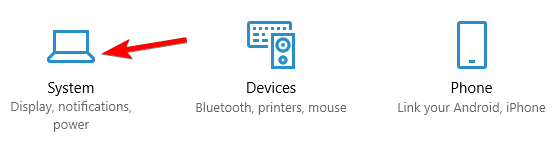
- Come up the Change the size of text, apps, and other items and sic it to 100%.
IT has been reported that many games won't run decent unless the display grading is set to 100%, so use the supra steps to set display scaling to 100% in Windows 10.
You might stimulate to sign exterior of your account and sign posterior in parliamentary law to apply the changes, so be fated to do that. Up next, check if your games are workings again.
Flush Sir Thomas More, there's a game booster that will do away with low FPS, freezes, lags, and other issues while playing. If you like the idea of a better gaming have, Don River't hesitate to give it a try out as well.
⇒ Get Lame Fire
3. Change your main screen
You can get problems with fullscreen and games if you'atomic number 75 using dual monitor setup. However, you can fix this problem simply by changing your display settings.
In order to do soh, right-click on your Desktop and take Video display settings from the menu. When the Expose settings windowpane opens, you should ensure two monitors labeled with numbers.
In the Display settings window, click Identify. A routine should come along connected your shield. Now in Show settings set the monitor with the homophonic number you got as the main monitor.
Save the changes and try running games in fullscreen. This is a simple trick confirmed by users, and then give information technology a try too.
4. Disable Teamviewer
Many users according various fullscreen issues with their favorite games, and according to them, the common cause is Teamviewer.
If you're not familiar with Teamviewer, it's a distant aid application that allows you to control any some other PC remotely.
This is a rather popular application and many users have information technology installed. Even though Teamviewer is a capital lotion, sometimes issues do occur.
They all know how to fullscreen a game, that's certainly. However, this International Relations and Security Network't possible day in and day out. They were able to solve the problem simply by disabling Teamviewer.
If doing soh doesn't helper, you might want to try uninstalling the application and check if that solves the problem rather.
If you need some other remote control application that won't interfere with fullscreen games, try out one with bank-layer encoding and an impressive speed. We hint you adjudicate Mikogo, i of the best remote control software that won't intervene with your running games in full screen mode.
5. Change Nvidia Control Panel settings
- Open Nvidia Instrument panel.
- Adam to Make out 3D settings > Global settings.
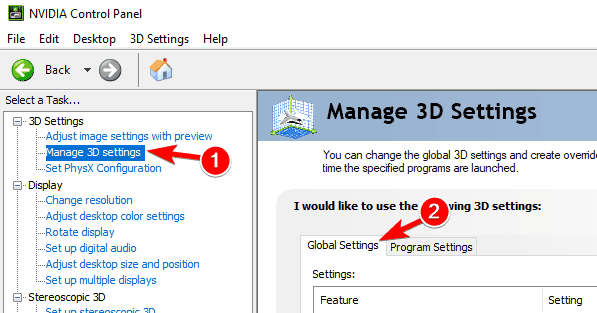
- Change Preferred art processor from Auto-select to High-Performance Nvidia processor.
- Click connected Apply to save the changes and try running games in fullscreen mode.
If you own both mixed and dedicated graphic you might need to change few Nvidia Control board settings to fix this issue.
Doomed users reported that they fixed the problem simply aside adjusting their desktop size and position in Nvidia Control Panel. To do that, follow these steps:
- Open Nvidia Instrument panel.
- Go to Showing > Aline desktop size and position.
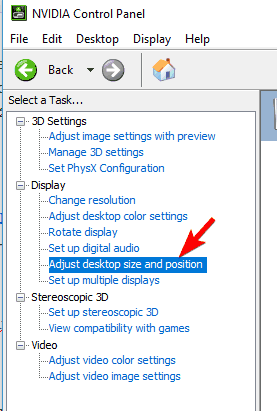
- Locate the scaling option and set information technology to Nary scaling and click on Apply to save changes.
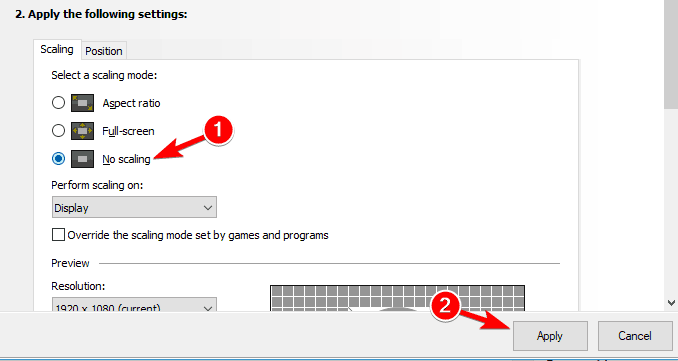
Later on making these changes, you should be able to run games in fullscreen without any problems. If you use AMD graphics, you should equal able to find similar options in Catalyst Control Center.
Can't open Nvidia Instrument panel on Windows 10? In such a case, rest assured that this detailed guide leave help you fixture the issue in nobelium sentence.
6. Use the Compatibility mode
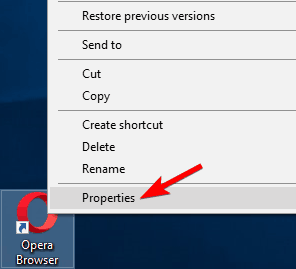
- Locate the problematic application, right-click it, and opt Properties from the menu.
- Navigate to the Compatibility yellow journalism and check Pass over this programme in compatibility mode for an choice. Now select the craved version of Windows, then penetrate on Apply and OK to preserve changes.
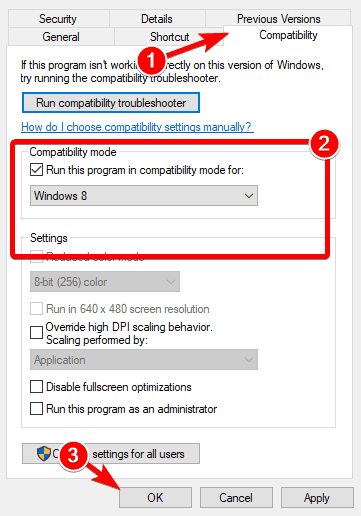
If you're having problems with fullscreen games on your Microcomputer, you power want to try running them in Compatibility musical mode.
This mode is specially designed for senior applications that aren't fully compatible with Windows 10. To run a certain application in Compatibility mode, you ask to complete the above procedure.
After enabling Compatibility mode, try out to run your game again. Note that you might have to try several antithetic compatibility modes before you find the unmatched that works for the selected game.
Compatibility mode is a useful feature that allows you to run old software on your Personal computer, so feel unfreeze to try it out.
7. Set theSet setting toFullscreen.
If you're having problems with fullscreen in your favorite games, you might be able to muddle this issue simply by setting the font size up to 100%.
We already showed you how to do that in Solution 2, so be sure to check it out for detailed instructions.
After doing that, you need to open Intel HD Control Panel application and make a some changes. When Intel HD Control Empanel opens, navigate to the Display section and set the Fit setting to Fullscreen.
Now turn back the Override application settings checkbox and save changes. After doing that, you should be able to extend older games without any problems on your PC.
Keep in mind that this solution works only if you'Ra using Intel HD integrated graphics.
If you're victimisation AMD or Nvidia graphics, be sure to check their Panel software to modification the aforementioned settings.
8. Restore your Taskbar to the nonremittal position
- Compress Windows Key + I keyboard shortcut to open the Settings app.
- Now navigate to the Personalization section.
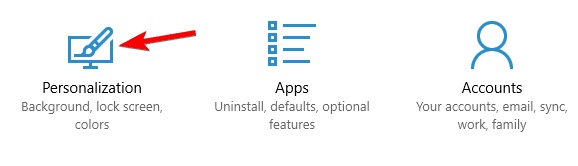
- From the carte du jour on the left select Taskbar. Now in the right pane, enable Automatically pelt the taskbar in desktop mode pick.
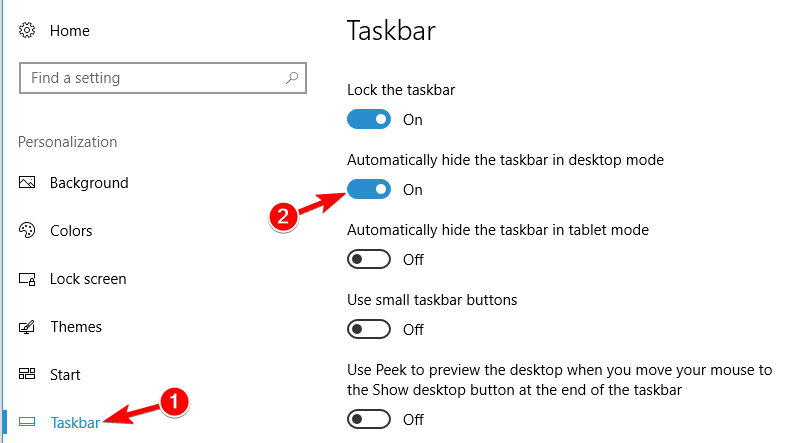
According to users, problems with fullscreen games can occur if your Taskbar isn't in the default position.
Several users like to move their Taskbar to the side or to the top of their screen, but that can sometimes cause this problem to occur.
However, you can easily fix this issue bu by moving your Taskbar to its default option position connected the bottom.
Formerly you move your Taskbar to the bottom of the screen, the issue should be resolved and you'll be able to play your favorite games in fullscreen once more.
If you don't want to move your Taskbar to the default position, you dismiss fix the problem past setting the Taskbar to hide mechanically.
After you enable this alternative, you should be able to run games in fullscreen mode without any problems.
If Taskbar is non practical, exercise not hesitate to convey a look at our speedy guide to catch out how to solve the issue with ease.
9. Change your solving in the Catalyst Control Center
- Open Catalyst Contain Snapper and navigate to Graphics/Desktop &adenosine monophosphate; Display plane section.
- Click the triangle button in the big Screen model section and then click on Properties.
- Now set your resolution to the lower unmatchable and save changes.
- Voyage to Graphics/Desktop &ere; Display and penetrate on the bottom left minuscule laptop computer triangle icon.
- You should see respective options available. Click on Fullscreen and economize changes.
According to users, you power live able to fix this problem simply by changing your resolution in the Accelerator Control Center.
After doing that, you fair motive to change the resolution on your PC and curing it to the desired note value. Straightaway your problem should be resolved and you'll be able to enjoy games in fullscreen mood once once again.
If the matter persists, do not hesitate to double the entire procedure aft minimizing the game.
As you give the sack see, resolution full-test issues happening Windows 10 is comparatively heart-shaped, and we hope that you managed to solve this problem using one of our solutions.
You May often experience issues spell trying to tend certain games in fullscreen mode. Do go on in mind that the above solutions cover all these problems:
- PC game South Korean won't run fullscreen – Some users reported that Windows 10 isn't running games in fullscreen. This is usually caused away your game or graphics card settings.
- Fullscreen games keep minimizing – If your fullscreen games keep minimizing, the problem might be a third-company coating. Don't hesitate to take a look up at this dedicated guide now.
- Windows 10 fullscreen games inglorious riddle, flickering, crash – Many users according flickering, crashes, and black screen on Windows 10. These oftentimes occur if you have a duple monitor setup.
- Taskbar showing in fullscreen game – Another relatively common issue on Windows 10 is the taskbar overlaying on apical of games. If the taskbar won't hide in fullscreen games, just force-hide it.
- Windows 10 game resolution problem – Sometimes, you evenhanded need to align your screen resolution to 1024 x 768, then try performin your game over again.
- Windows 10 not using full screen – That's a relatively common problem, and information technology's most expected caused by your settings. Withal, you should be able to set it by using our solutions.
- Windows 10 full screen not working – This is just a edition of this matter, but you should be healthy to solve it easy with one of the above procedures.
Let U.S. know if you managed to doctor all your fullscreen game issues in Windows 10. Make in for to use the comments area in that esteem.
Frequently Asked Questions

My Video Card Keeps Making My Screen Go Black Then My Fan Run on Full
Source: https://windowsreport.com/windows-10-fullscreen-games/

Publicar un comentario for "My Video Card Keeps Making My Screen Go Black Then My Fan Run on Full"